Learn how to easily optimize your RAM for a real performance boost using simple, beginner-friendly methods. Discover easy RAM optimization tips to reduce RAM usage, boost computer speed, and clean up RAM in Windows without upgrading your hardware.
Introduction
Have you ever noticed your computer slowing down when too many programs are open? Maybe your browser freezes, apps take forever to load, or your system just feels sluggish. The reason behind this is often RAM overload.
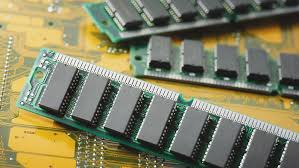
Your RAM Random Access Memory acts like your computer’s short-term memory. The more tasks it handles at once, the more space it uses. When RAM gets full, your system slows down.
The good news? You don’t always need to buy more RAM to fix it. With a few easy RAM optimization methods for beginners, you can boost computer speed, reduce RAM usage, and make your PC run smoother—without spending a penny.
Let’s dive into how to optimize RAM performance step-by-step.
What Is RAM and Why Does It Slow Down Your PC?
Before we jump into memory optimization tips, let’s understand what RAM does.
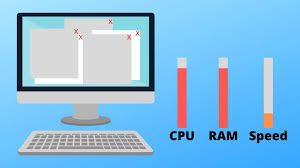
RAM temporarily stores the data and applications you’re currently using. Think of it as your work desk. The more items you pile on, the less space you have to work comfortably.
When your desk (RAM) gets cluttered:
- Your computer struggles to find what it needs quickly.
- Apps take longer to open or may freeze.
- Your overall system performance drops.
So, RAM optimization is like cleaning up that desk — freeing space, removing clutter, and allowing your computer to focus on what really matters.
1. Restart Your Computer – The Simplest RAM Optimization Tip
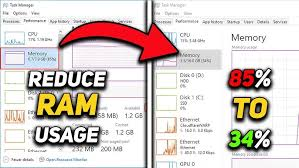
It might sound too simple, but restarting your computer is one of the best free RAM cleaners for PC
When you restart your system, all temporary files and background processes are cleared out. This instantly frees up memory for faster performance.
Quick Tip:
Make it a habit to restart your PC at least once a week if you keep it running for long hours.
2. Check What’s Using Your RAM
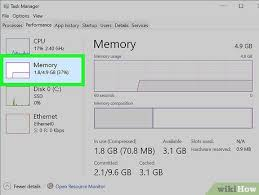
If your PC feels slow, it’s time to find out what’s eating your memory.
For Windows 10/11 users:
- Press Ctrl + Shift + Esc to open Task Manager.
- Click on the Processes tab.
- Look for the Memory column to see which apps are using the most RAM.
Once you identify the memory-hungry apps, close the ones you don’t need. This simple step can optimize computer RAM manually and give an instant performance boost.
3. Disable Startup Programs
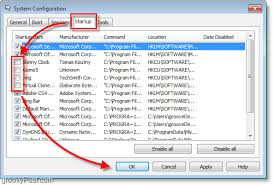
Many programs start automatically when you boot your PC. While convenient, they eat up valuable memory right from the start.
To reduce RAM usage in Windows:
- Open Task Manager → Startup tab.
- Right-click on unnecessary programs and select Disable.
By stopping unnecessary startup apps, you’ll notice faster boot times and smoother performance overall.
4. Uninstall or Disable Unused Software
background memory and slow down your system.
Go to:
- Control Panel → Programs → Uninstall a program
- Remove apps that you no longer use or need.
This is one of the easiest RAM optimization methods to boost computer speed instantly.
5. Use a Free RAM Cleaner Tool
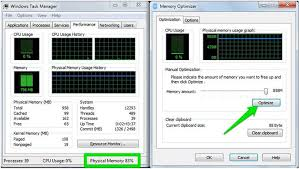
If you want a quick fix, try a best free RAM cleaner for PC like Wise Memory Optimizer or WMC Windows Memory Cleaner
These tools help:
- Clean up RAM in Windows
- Reduce background processes
- Optimize RAM performance automatically
They’re especially useful for beginners who don’t want to dive into complex settings. Most tools are lightweight and easy to use perfect for easy RAM optimization methods for beginners.
6. Adjust Your Virtual Memory Settings
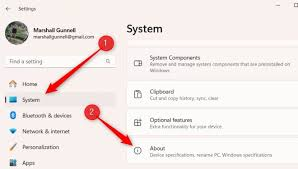
When your physical RAM runs out, Windows uses part of your hard drive as “virtual memory.” This acts as a backup to prevent crashes.
You can tweak this setting for better performance:
- Go to Control Panel → System → Advanced system settings.
- Under Performance → Settings → Advanced → Virtual memory, click Change.
- Increase the size based on your RAM (for example, if you have 8GB RAM, set virtual memory to 12–16GB
This trick can optimize RAM performance when your system struggles with multiple tasks.
7. Keep Your System and Drivers Updated
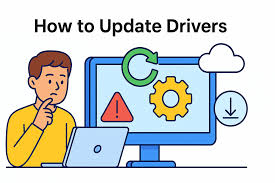
Outdated drivers or system files can cause memory leaks — meaning your RAM doesn’t release space properly.
Regularly updating Windows and device drivers ensures smoother memory optimization and better system stability.
How to do it:
- Go to Settings → Windows Update → Check for updates.
- Use tools like Driver Booster to keep your system drivers current.
8. Limit Browser Tabs and Extensions
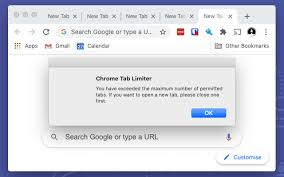
Web browsers are some of the biggest RAM consumers, especially Chrome and Edge.
If you often keep 20+ tabs open, your computer will struggle. Close unused tabs or use extensions like The Great Suspender that pause inactive ones.
Also, remove unnecessary extensions — they silently eat up memory in the background.
This simple change can reduce RAM usage and boost computer speed instantly.
9. Scan for Malware and Viruses

Malware can secretly run in the background, consuming memory and slowing down your PC.
Use a trusted antivirus or Windows Defender to scan your system regularly. Removing malware is one of the most overlooked yet effective ways to boost RAM performance on Windows 10/11.
10. Add More RAM If Needed
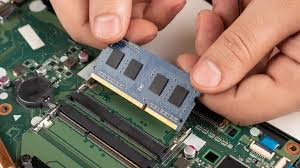
If you’ve tried all the manual optimization tips and your computer still lags, it might be time to consider a RAM upgrade.
However, before spending money, try all the how to optimize RAM without upgrading methods above. Many users find that simple tweaks and cleanup give them the performance they need.
Bonus: Advanced Manual RAM Optimization Tips
If you’re confident with basic PC settings, try these additional tricks:
- Disable visual effects:
Go to System Advanced settings → Performance → Adjust for best performance. - Use the Disk Cleanup tool to remove temporary files.
- Run Windows Memory Diagnostic to check for memory errors.
These steps further optimize computer RAM manually and keep your system healthy.
Common Mistakes to Avoid During RAM Optimization
- Installing too many RAM cleaners: Stick to one trusted tool to avoid conflicts.
- Ignoring updates: Outdated systems can undo your optimization efforts.
- Over-tweaking virtual memory: Setting it too high can slow down your hard drive.
- Running too many background apps: Even optimization tools can consume resources if left running constantly.
Conclusion
Enjoy a Faster, Smoother PC Today
You don’t need to be a tech expert to optimize RAM performance and boost computer speed. By following these simple memory optimization tips, you can reduce RAM usage, clean up RAM in Windows, and enjoy a smoother computing experience.
Whether you use manual methods or a best free RAM cleaner for PC the goal is the same to make your computer faster and more efficient.
So, restart your PC, close unwanted apps, and try these easy RAM optimization methods for beginners today.
RAM optimization, optimize RAM performance, boost computer speed
memory optimization tips, reduce RAM usage, clean up RAM in Windows
how to optimize RAM without upgrading, ways to boost RAM performance on Windows 10/11, best free RAM cleaner for PC, easy RAM optimization methods for beginners, how to free up memory for faster performance, optimize computer RAM manually
Top 5 FAQs About RAM Optimization
1. How can I optimize my RAM for better performance?
You can optimize RAM performance by restarting your computer regularly, closing unused apps, disabling startup programs, and uninstalling unnecessary software. You can also use a free RAM cleaner tool to automatically clear background processes and free up memory for faster performance.
2. What is the best free RAM cleaner for PC?
Some of the best free RAM cleaners for PC include Wise Memory Optimizer, CleanMem, and WMC Windows Memory Cleaner These tools are lightweight, easy to use, and help reduce RAM usage without affecting your computer’s stability.
3. How do I free up RAM without upgrading my computer?
You don’t need to buy more RAM to get better speed. Try these easy RAM optimization methods for beginners — clear browser tabs, disable background apps, clean up RAM in Windows using Task Manager, and adjust virtual memory settings. These steps can boost computer speed instantly.
4. Why does my computer slow down even with enough RAM?
Sometimes, even if you have enough RAM, poor memory management, outdated drivers, or malware can slow your system down. Regular updates, malware scans, and manual memory optimization tips can help restore performance.
5. How often should I optimize my RAM?
For best results, you should optimize computer RAM manually once a week. Restart your PC, remove temporary files, and use a trusted RAM optimization tool to keep your system running smoothly.
Disclaimer
The information provided in this article, How to Easily Optimize Your RAM for a Real Performance Boost, is for educational and informational purposes only. The methods and tips shared here are based on general system optimization practices. Always back up important data before making any changes to your computer settings. The author and publisher are not responsible for any data loss or system issues that may occur as a result of following these suggestions. Use all tools and software at your own discretion.